Install and sign in
This page covers the first five minutes with any Sitora app. The steps are the same for all four; only the name of the app changes.
1. Install the right app
Section titled “1. Install the right app”Search your phone’s app store for the exact name:
- Sitora — for guests
- Sitora Pro — for restaurant staff
- Sitora Biz — for owners
- Sitora Courier — for couriers
They are four separate downloads with four separate icons. If you are not sure which one you need, see The Sitora apps.
If your restaurant gave you a link or a code to install from, use that instead — some restaurants distribute the staff app directly.
2. The first three screens
Section titled “2. The first three screens”The first time you open any Sitora app it shows three short screens: what the app is, one thing it does that you would not have guessed, and one promise about what it will never do. Three, and no more — you can see how many there are from the first one.
You do not have to read them. Skip sits in the top corner from the very first screen, and skipping costs you nothing — it closes the introduction and sends you nowhere in particular, which is the point: a skip is never punished by routing you somewhere you did not ask for. The language control is up there too, so if the app opened in a language you do not read, you can fix that before anything else is asked of you.
The button on the last screen is the app’s first real action — Choose your branch in Sitora, Sign in in the other three. Pressing it is the only thing on these screens that chooses a destination: in Sitora it starts you at the branch picker, where Skip leaves you on Home instead. In the other three apps you are not signed in yet, so both routes reach the sign-in screen.
You see this once per app, on the device you installed it on. The four apps introduce themselves separately, and signing out brings none of them back. To read it again, open How this app works, next to the language setting in your profile — it is on the sign-in screen too.
3. Open it and choose how to sign in
Section titled “3. Open it and choose how to sign in”Every Sitora app offers the same two ways in:
Continue with Google. The fastest route. Tap it, pick your Google account, and you are in.
Sign in with Telegram. The app creates a login request and opens Telegram so you can confirm it. If Telegram does not open by itself, the screen shows you a code you can copy and send to the bot, and a QR code you can scan from another device where your Telegram is signed in.
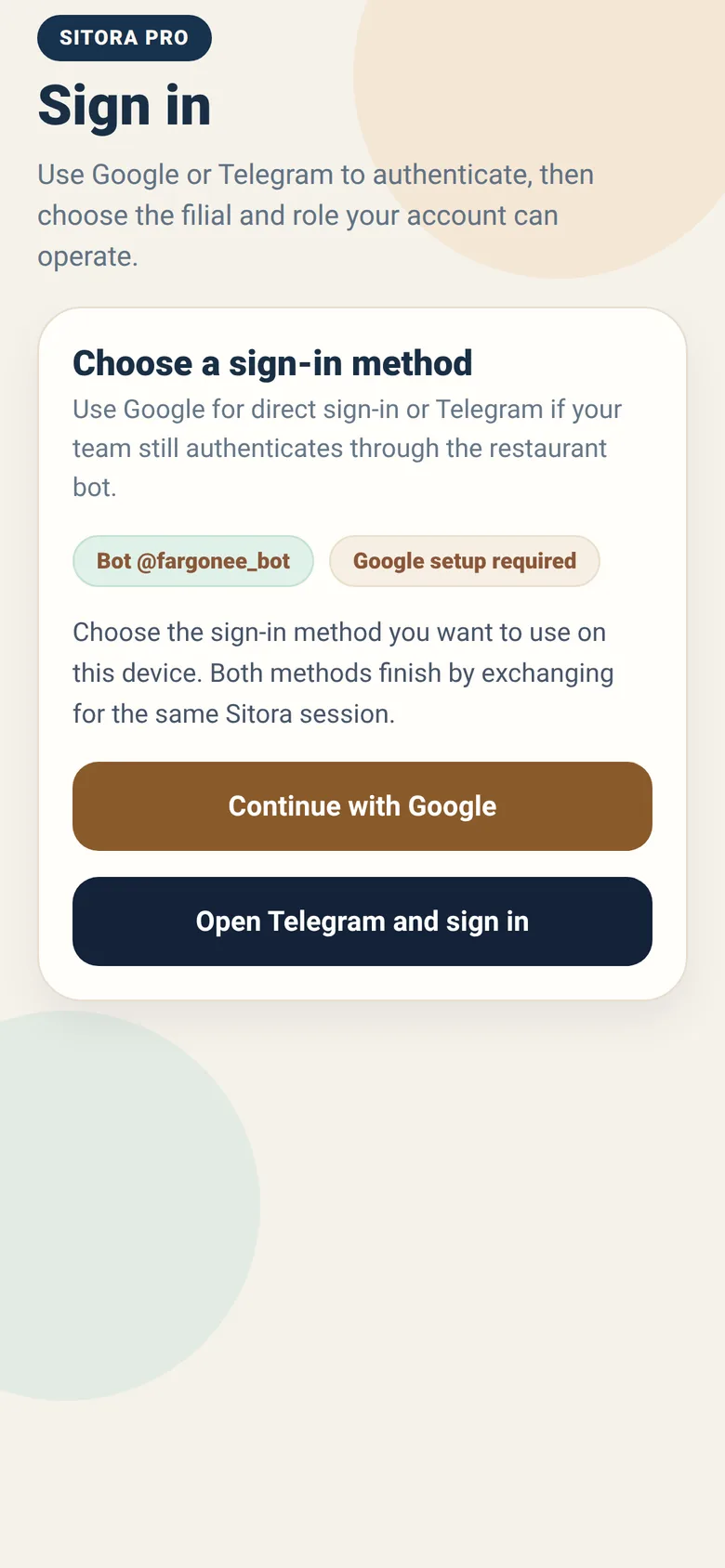
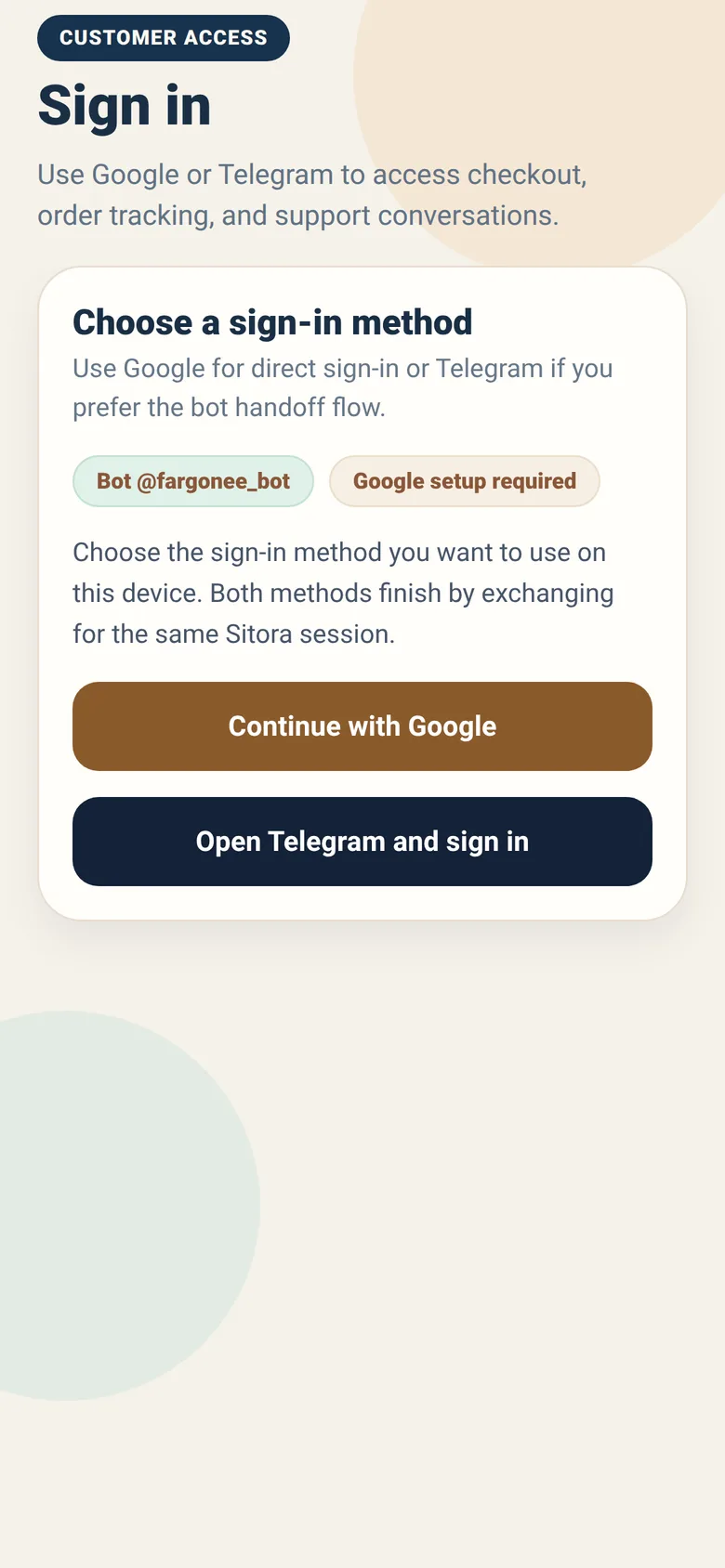
Both routes end in the same place. Which one you pick is only about convenience — it does not change what your account can do.
If Telegram sign-in gets stuck
Section titled “If Telegram sign-in gets stuck”| What you see | What to do |
|---|---|
| Telegram does not open | Copy the code shown on screen and send it to the bot yourself |
| “Waiting for confirmation” and nothing happens | Open Telegram, find the bot, and confirm the request there |
| “Session expired” | Go back and start a new sign-in — login requests do not stay open forever |
| Your Telegram is on a different device | Scan the QR code from that device |
4. What happens next depends on the app
Section titled “4. What happens next depends on the app”Sitora (guests)
Section titled “Sitora (guests)”You will be asked to choose a branch before you see a menu. Prices, dishes and availability all belong to one specific branch, so the app cannot show you a menu until it knows which one you mean.
You can browse without signing in at all. You only need an account when you place an order.
Sitora Pro (staff)
Section titled “Sitora Pro (staff)”You will be asked to choose the branch you are working in, then — if you hold more than one role there — which role you are working as.
If the app tells you that no access is available, your account is fine but nobody has given it a role yet. Ask your branch admin or manager to add you. See Choosing your branch and role.
Sitora Biz (owners)
Section titled “Sitora Biz (owners)”You will be asked to choose which restaurant you are controlling, if your account controls more than one.
If your account does not control any restaurant yet, Biz shows you the onboarding request form instead of the owner workspace. See Getting set up.
Sitora Courier
Section titled “Sitora Courier”You go straight to your home screen, off shift. Before you can accept work, the app checks a list of requirements — your details, your documents, your age, the current courier terms — and shows you exactly which ones are still outstanding. See Getting approved to work.
5. Set your language
Section titled “5. Set your language”The introduction offers this before anything else, in its top corner — so if the app opened in a script you cannot read, you never have to get past a screen you cannot read to fix it.
All four apps are available in English, Russian and Uzbek. You will find the language setting in your profile or account screen.
Changing the language changes the whole app at once, including the words the restaurant’s own system sends you. It is safe to switch at any time — you will not lose your place, your cart, or anything you have entered.
Signing out, and being signed out
Section titled “Signing out, and being signed out”You can sign out from your profile screen whenever you like.
You may also be signed out for you, and there are two very different reasons:
- Your session ended. Sign in again; nothing is wrong.
- Your access changed. In staff and owner apps, someone changed what your account is allowed to do. The app will say so plainly rather than pretending the screen is empty. This is not a bug — it means your role or membership was changed by someone at the restaurant.