Choosing your branch and role
Everything you do in Sitora Pro belongs to one branch and is done as one role. The app asks both questions before it shows you any work.
Choosing a branch
Section titled “Choosing a branch”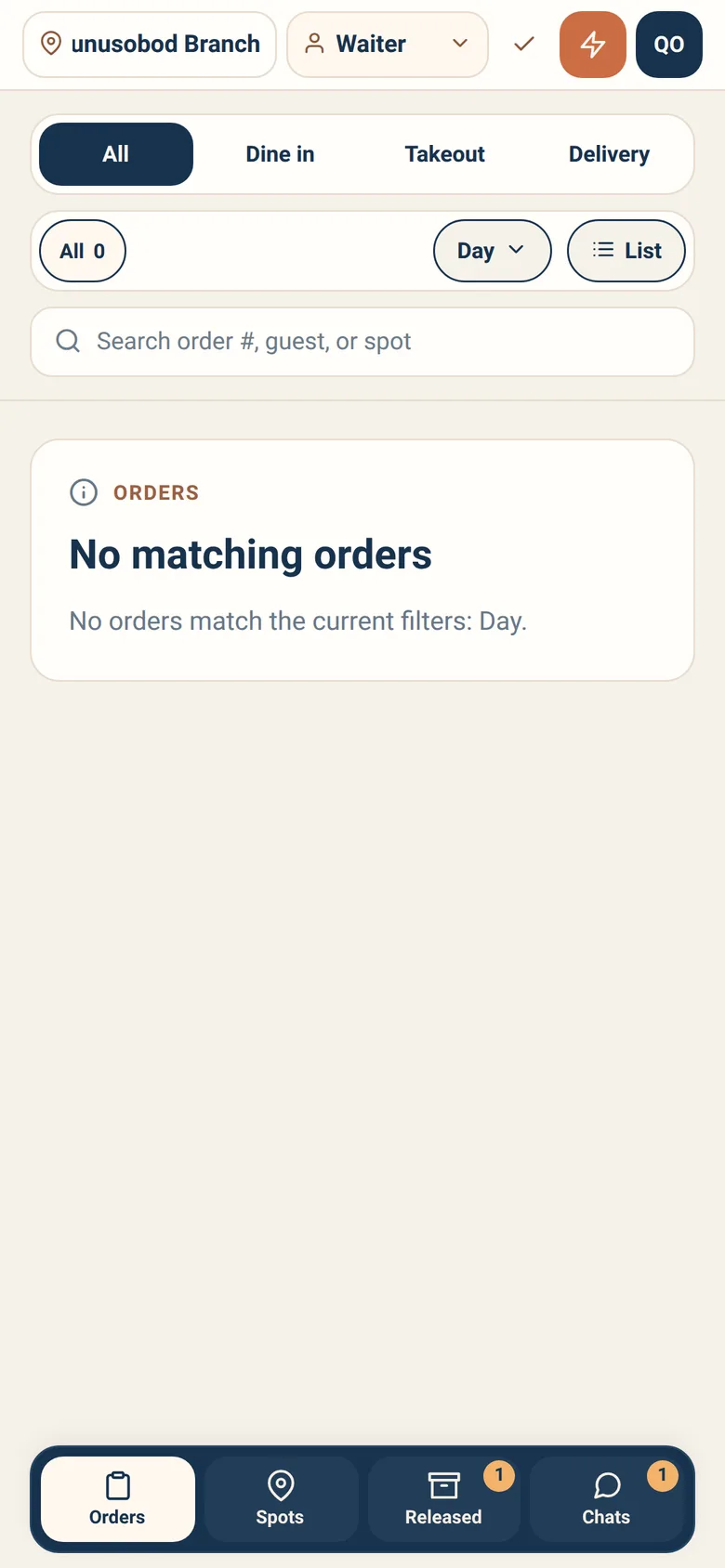
The list shows only branches where your account actually has a role. If you work at one branch, you will be there already.
Switching branch re-scopes everything — orders, payments, stock and chats all change to the branch you picked. The app says so before you switch. Nothing is lost by switching; you just stop seeing one branch’s work and start seeing another’s.
Choosing a role
Section titled “Choosing a role”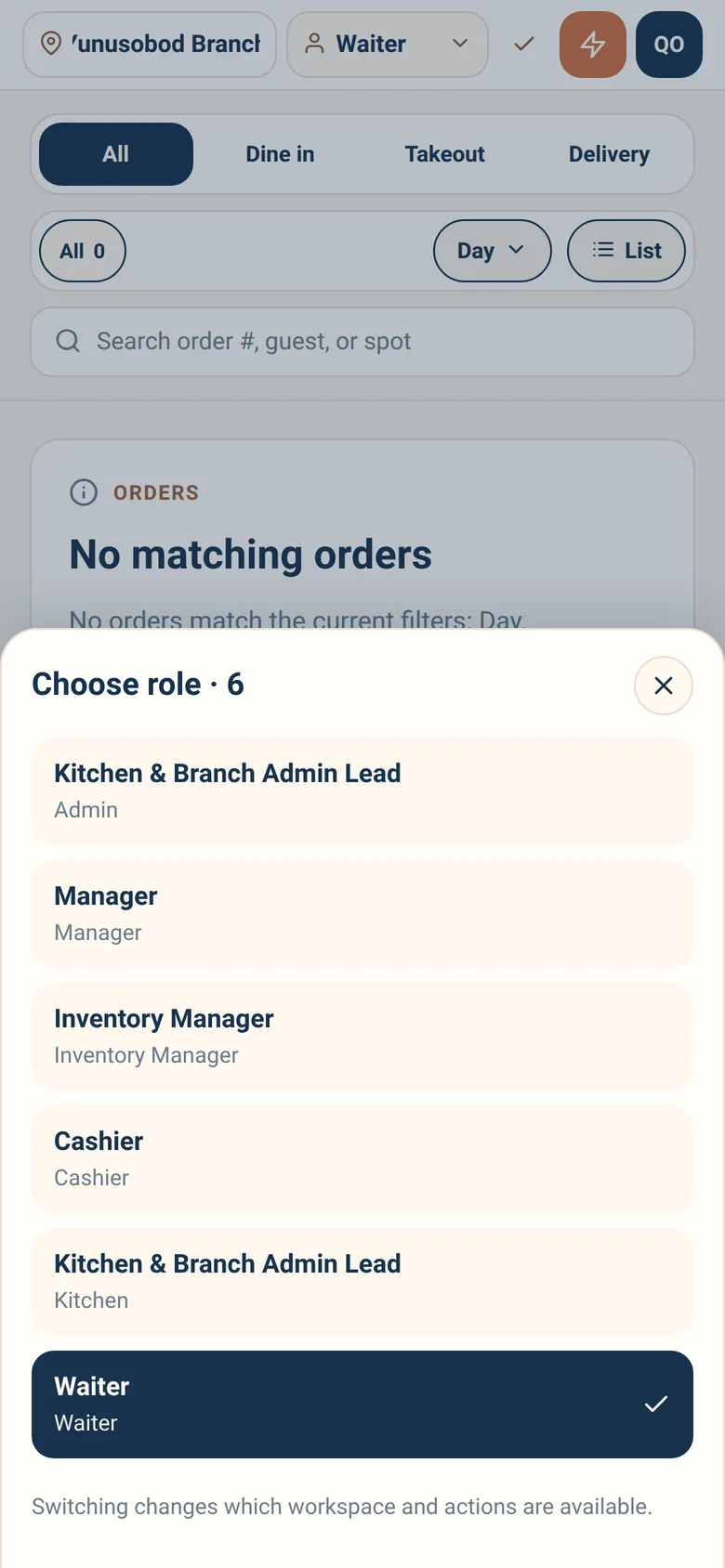
If you hold more than one role at a branch, you pick which one you are working as. If you hold exactly one, the app selects it for you.
Switching role changes your workspace, not just your buttons. A cashier switching to waiter is not unlocking extras — they are moving to a different screen with a different queue. The app states this before you switch.
Switch freely. It is an ordinary part of a shift at a small branch where one person covers two jobs.
When Pro says you have no access
Section titled “When Pro says you have no access”Two different messages, two different causes.
“No operational access is available.” You are signed in, but your account has no active role at any branch. Nobody has added you yet, or your membership was removed. Ask your branch admin or manager. If your access was just granted, use Recheck access — the app will pick it up.
“No role is available in this branch.” You have access somewhere, but not at the branch currently selected. Switch branch, or ask your branch admin if you should have access here.
Neither is something Sitora can fix for you. Roles are given by the restaurant.
When your access changes mid-shift
Section titled “When your access changes mid-shift”If someone changes your role while you are working, the app tells you and asks you to refresh before acting further. It will not let you keep working from a screen that is no longer true.
This is not a fault. It means a branch admin, manager or owner changed something about your account. If it was unexpected, ask them.
Your operator profile
Section titled “Your operator profile”From any workspace you can open your profile to see which branch and role you are currently working as, plus your language and sign-in methods.
When a screen looks wrong, check this first. Wrong branch and wrong role explain most of it.