Sitora for guests
Sitora is the app you use as a customer. Browse a restaurant’s menu, order at your table or for collection or delivery, follow the order until it is in front of you, and talk to the restaurant if something needs sorting out.
You can look at menus without an account. You need one to place an order.
Start by choosing a branch
Section titled “Start by choosing a branch”The first thing the app asks is which branch you are ordering from.
This is not a formality. Dishes, prices, and what is actually available today all belong to one specific branch of a restaurant. Two branches of the same restaurant can have different menus and different prices, so “the menu” only exists once you have said where.
You can change branch at any time from the menu screen. Your cart belongs to the branch you built it in.
The six tabs
Section titled “The six tabs”Along the bottom of the app:
| Tab | What it is for |
|---|---|
| Menu | Browse and search dishes, and open one to order it |
| Reels | Short videos posted by restaurants |
| Cart | What you are about to order, and the checkout |
| Orders | Live tracking, and everything you have ordered before |
| Chats | Conversations with restaurants about your orders |
| Profile | Your details, language, and sign-in methods |
Finding a dish
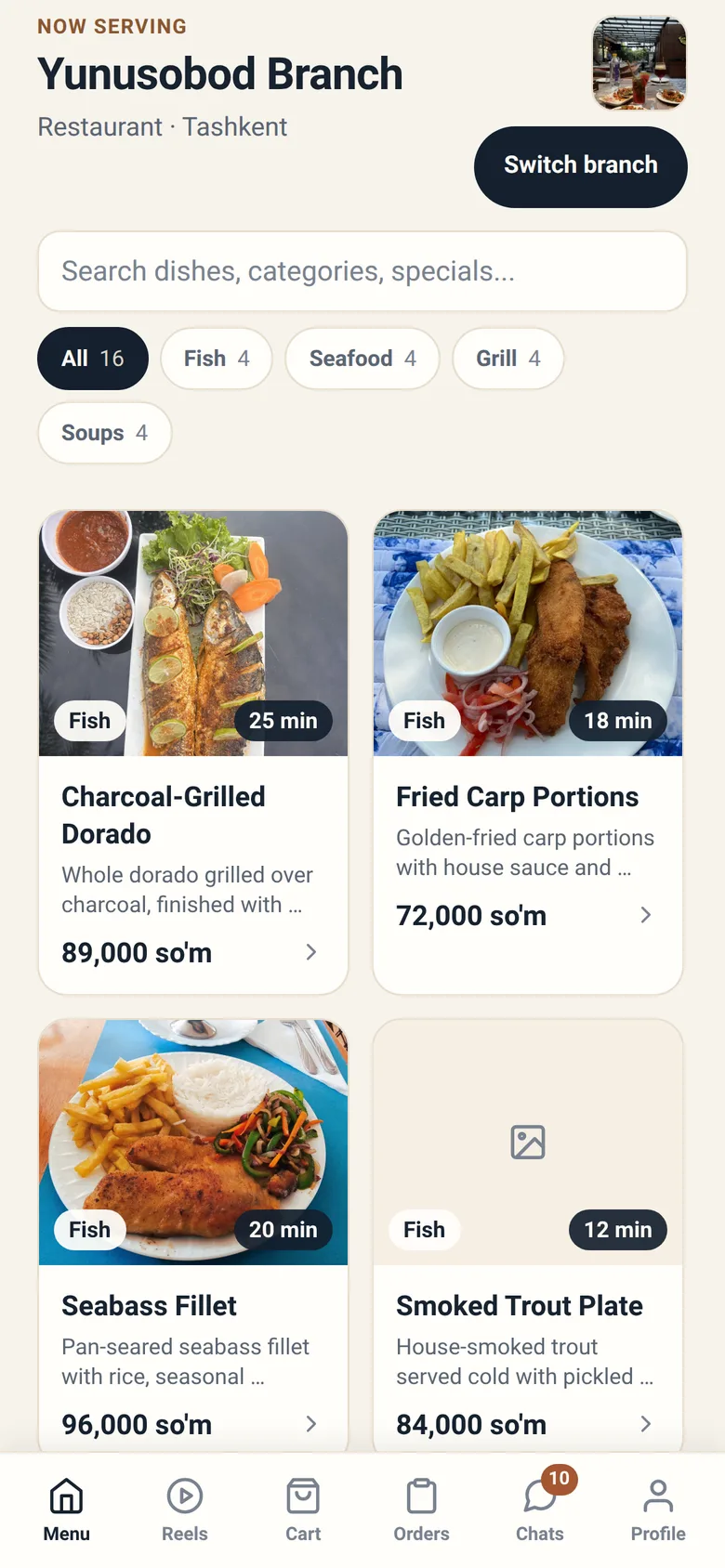
Section titled “Finding a dish”The menu screen gives you three ways to narrow things down:
- Categories across the top — tap one to show only those dishes, or All to see everything.
- Search — type part of a dish name, a category, or the name of a special.
- Scroll — the plain approach, and the fastest when the menu is short.
A dish marked Unavailable is one the branch has run out of or switched off. It stays on the menu so you can see it exists, but you cannot add it to your cart. It comes back by itself when the branch has it again.
Opening a dish
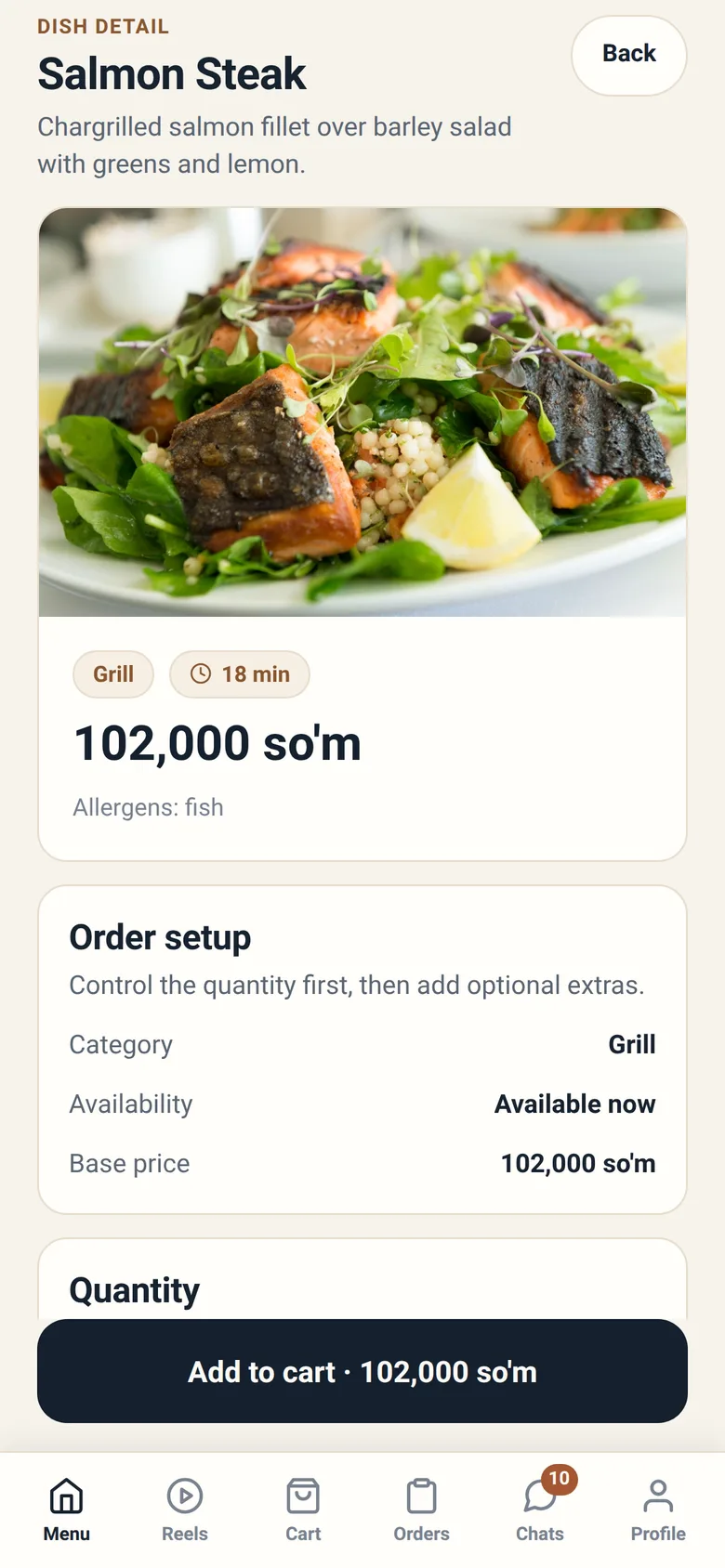
Section titled “Opening a dish”Tapping a dish shows you what you are actually buying: the price, roughly how long it takes to prepare, and any extras you can add. Add-ons that cost money show their price before you pick them, so the total never surprises you.
From here Add to cart puts it in your cart with whatever options you chose.
The three ways to order
Section titled “The three ways to order”The app supports three kinds of order, and the choice changes what you are asked for at checkout. A contact number is asked for by all three — it is not a takeout thing — and the order cannot be placed without one.
Dine in — you are at the restaurant. You pick your table, and the order joins your visit. → Ordering at a table
Takeout — you will collect it yourself, and the branch calls you when it is ready. → Takeout and delivery
Delivery — it comes to you. You choose where, and the app prices the delivery before you commit. → Takeout and delivery
After you order
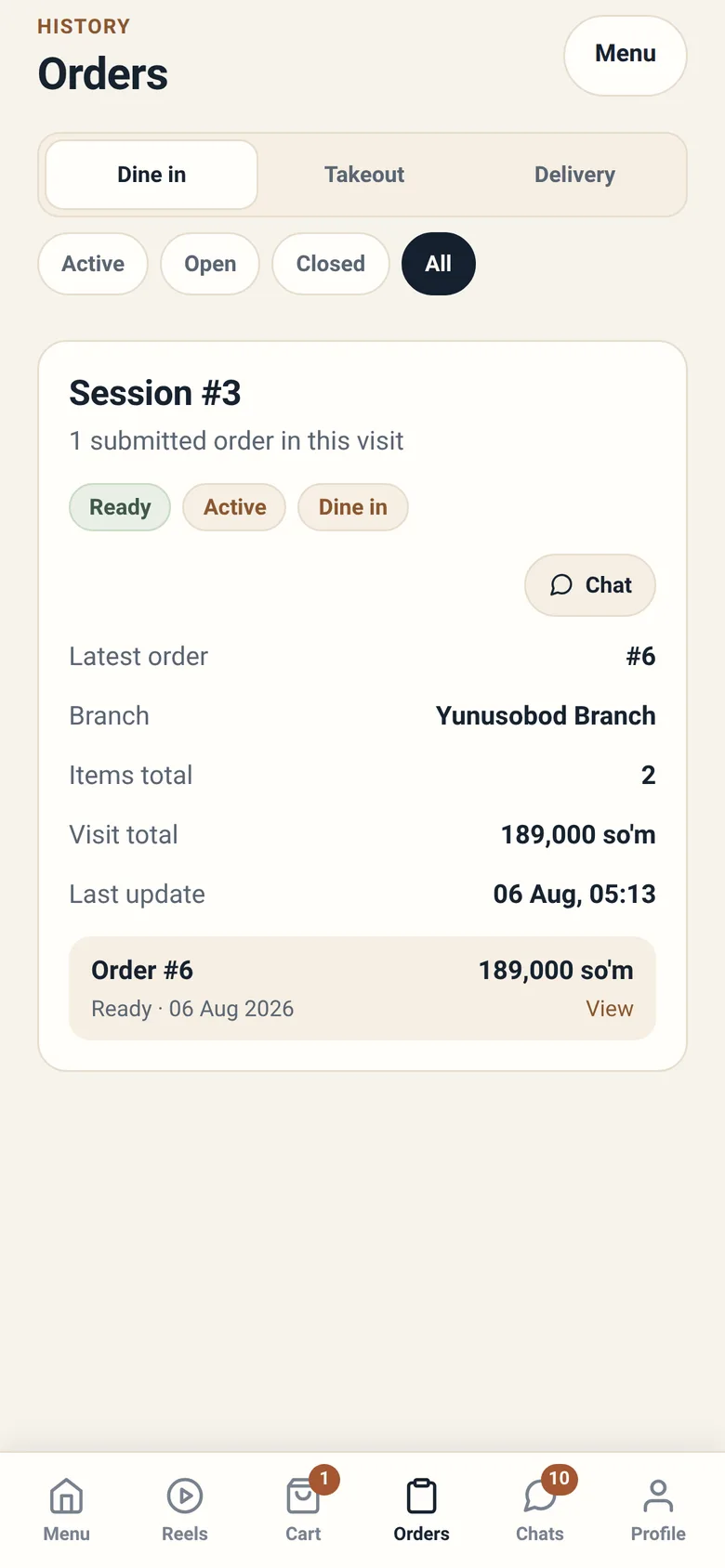
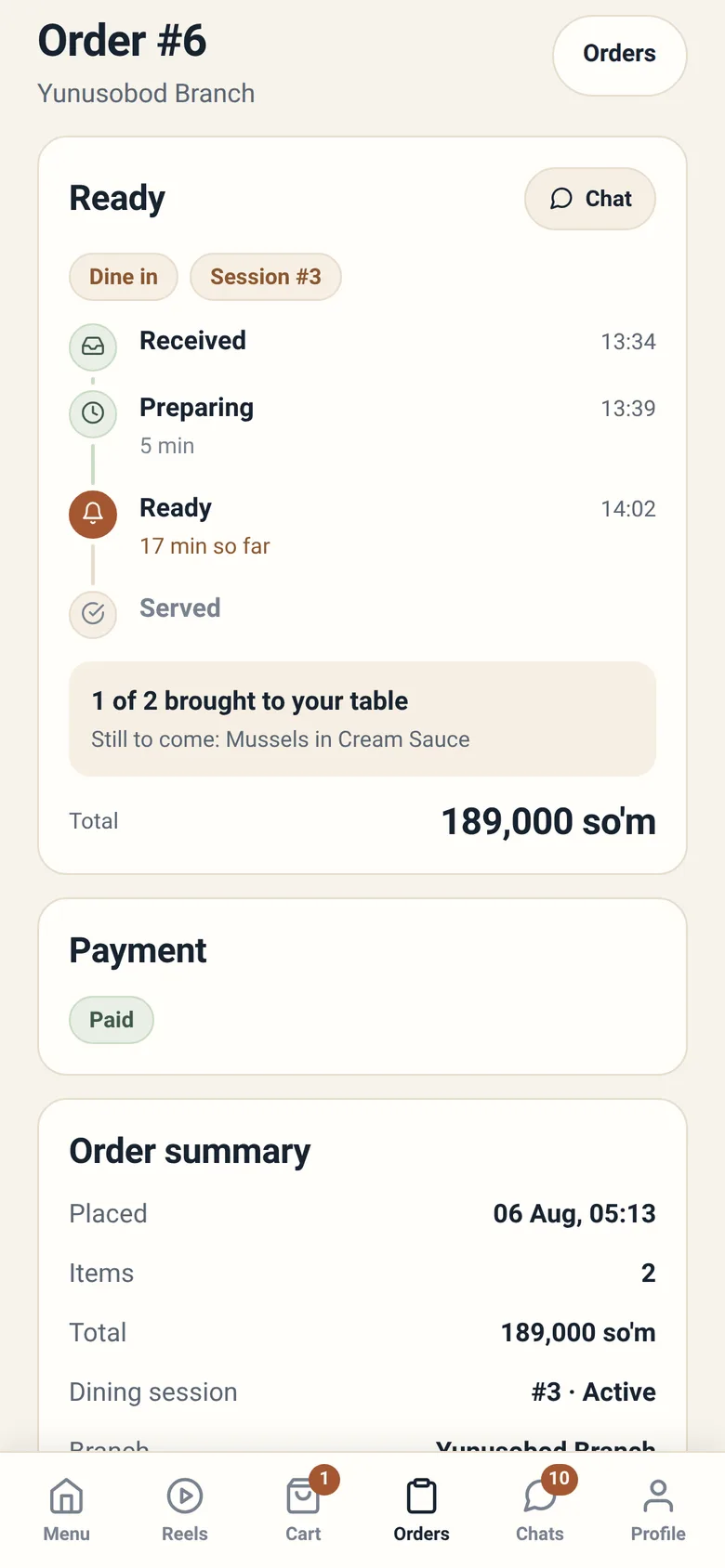
Section titled “After you order”Everything you order appears under Orders, where you can follow its status and, for deliveries, see where it has got to.
Two things that surprise people
Section titled “Two things that surprise people”A submitted order cannot be edited. Once it is in, its contents are fixed. This is deliberate: the kitchen must be working from exactly what you sent, not from a moving target. Adding something means placing another order — and at a table that means asking a member of staff, because the app will not take a second order for a table you are already sitting at. See Ordering at a table.
You can cancel, but only for a while. Cancelling is available while the branch has not started preparing your food and the order is not yet paid. Either one ends it: once cooking begins the food is already being made, and once money has settled ending the order is a refund conversation rather than a tap. Where the branch takes payment up front — the common case — that means the button is usually gone as soon as you have paid. If you need to stop an order after that, use the chat.