Sitora Pro for staff
Sitora Pro is the app you use while you are working. It is one app, but what you see inside it depends entirely on your job: a waiter sees the floor, a cook sees tickets, a cashier sees payments waiting for a decision.
One workspace per role
Section titled “One workspace per role”Pro is not one screen with buttons switched off for some people. Each role gets its own workspace, built around the queue that role actually works.
| Role | Workspace |
|---|---|
| Waiter | The floor: live orders, tables, follow-up after guests leave — and deliveries where the branch offers them |
| Cashier | Payments waiting for a decision, taking payment, and receipts |
| Kitchen | The production board of tickets to cook |
| Service manager | The state of service right now, and what needs attention |
| Storekeeper | Stock levels, alerts, adjustments, and what can be sold |
| Supply manager | Ingredients and what they cost: suppliers, purchase orders, receiving, invoices |
| Branch admin | Branch oversight: team, menu control, stock health, control actions |
| Content manager | Reels, comments and statistics for the branch |
They are all looking at the same restaurant. They just never have to scroll past each other’s work to find their own.
Serving a guest who is not using the app
Section titled “Serving a guest who is not using the app”Most guests a restaurant serves have never heard of Sitora: the walk-in at the till, the table you are taking an order from, the person ordering delivery by phone. Serving them is called the Counter, and it does not live in Sitora Pro — it lives in Sitora, the guest app, which you install and sign in to as yourself.
That is deliberate: there is one ordering screen in the whole platform, not a staff copy of it that drifts. You order for a guest through exactly the app they would have used.
Only some roles can do it, and it is your branch’s owner who decides which — it follows a permission your role either carries or does not, per branch. If you do not have it, the Counter is not merely greyed out; there is no sign of it anywhere in the app.
While you are serving someone, the app is a different app
Section titled “While you are serving someone, the app is a different app”You pick a guest and the app changes:
- A bar across the top names the guest and the branch, and never goes away. It has one verb: stop.
- The bottom bar carries only the ordering tabs. Reels, chats and your own profile are gone until you stop.
- Your own cart is set aside and comes back when you stop. Your own orders are never mixed in with theirs.
- Nothing about your account — sign-in prompts, your profile — appears while you are serving somebody.
It is meant to be impossible to be serving a guest and not realise it.
What a guest profile is, and is not
Section titled “What a guest profile is, and is not”A guest profile is a branch’s record of one person it is serving. It has a number the branch calls them by, and it belongs to that branch.
It is not an account. Nobody can sign in as it, it never becomes a real account later, and it never stands in for a guest who does have the app — if they have Sitora, they order as themselves.
Two things the Counter will never do
Section titled “Two things the Counter will never do”It never takes money. You cannot pay on a guest’s behalf from their screen. What you see is payment state, read-only, and where it is settled — “not paid yet, settled at the branch”. Payment happens where payment already happens: the cashier, the terminal, the provider. Same for a Counter order as for any other.
It never sends a message as the guest. A guest profile has no phone to reply on. The chat surfaces are simply absent while you are serving somebody.
A Counter order is otherwise an ordinary order: same kitchen queue, same rules, same unpaid-preparation gate. It just carries two extra facts — who it is for, and who placed it.
The refusal you will meet at a cash-only branch
Section titled “The refusal you will meet at a cash-only branch”If your branch takes delivery money in cash only — cash on delivery is switched on and it has no working online payment provider — then a delivery order that is not marked as paid on delivery is refused: “this branch takes payment for a delivery in cash only. Confirm cash on delivery to place the order.”
It is not an error and nothing is lost. The branch simply has no way to settle a prepaid delivery, so the app will not let one be created that could never be paid. Beside the payment-timing control a note lights up saying the same thing, and ticking Pay on delivery clears the refusal on the next try.
Because the Counter is the guest’s own ordering screen, you meet exactly this refusal, with exactly this wording, when you order for somebody.
Rules that apply in every workspace
Section titled “Rules that apply in every workspace”Learn these once and every screen makes sense.
A button you can see is a button that works. The app does not draw actions you cannot take. If an action is missing, it is genuinely unavailable — because of your role, or because of the state the thing is in. Do not go looking for a hidden setting.
The screen is a control panel, not a document. The important information stays pinned in place while lists scroll underneath. If you are scrolling and the whole screen changes into a different section, tell someone — that is a defect, not a feature.
Serious actions ask you to hold, not tap. Anything with consequences — freeing a table, closing a session, loading a robot — uses a press-and-hold. That is a deliberate speed bump for things that cannot be undone with a second tap.
Serious actions want a reason. Governed actions record who did it and why. “Who changed this, and why” is always answerable afterwards.
Two people acting at once are both told. If someone else moves an order while you are looking at it, you are told what happened rather than silently overwriting them. You will see messages like “Another kitchen user already advanced this order.” That is the app protecting the record.
A degraded screen says so. Offline, stale data, or lost access are stated plainly at the top of the screen. During service, a wrong screen is worse than a blank one — so the app would rather tell you it is unsure.
Reading the status strip
Section titled “Reading the status strip”Most workspaces show a small strip near the top:
| It says | It means |
|---|---|
| Ready | Live and current |
| Refreshing | Fetching an update |
| Stale | What you are looking at may be behind — refresh before acting |
| Offline | No connection; showing the last known state |
| Access changed | Your role or membership changed — refresh before acting |
Most changes are blocked while offline, on purpose. Recording a decision against a picture of the restaurant from ten minutes ago is how two people end up disagreeing about what happened.
Starting a shift
Section titled “Starting a shift”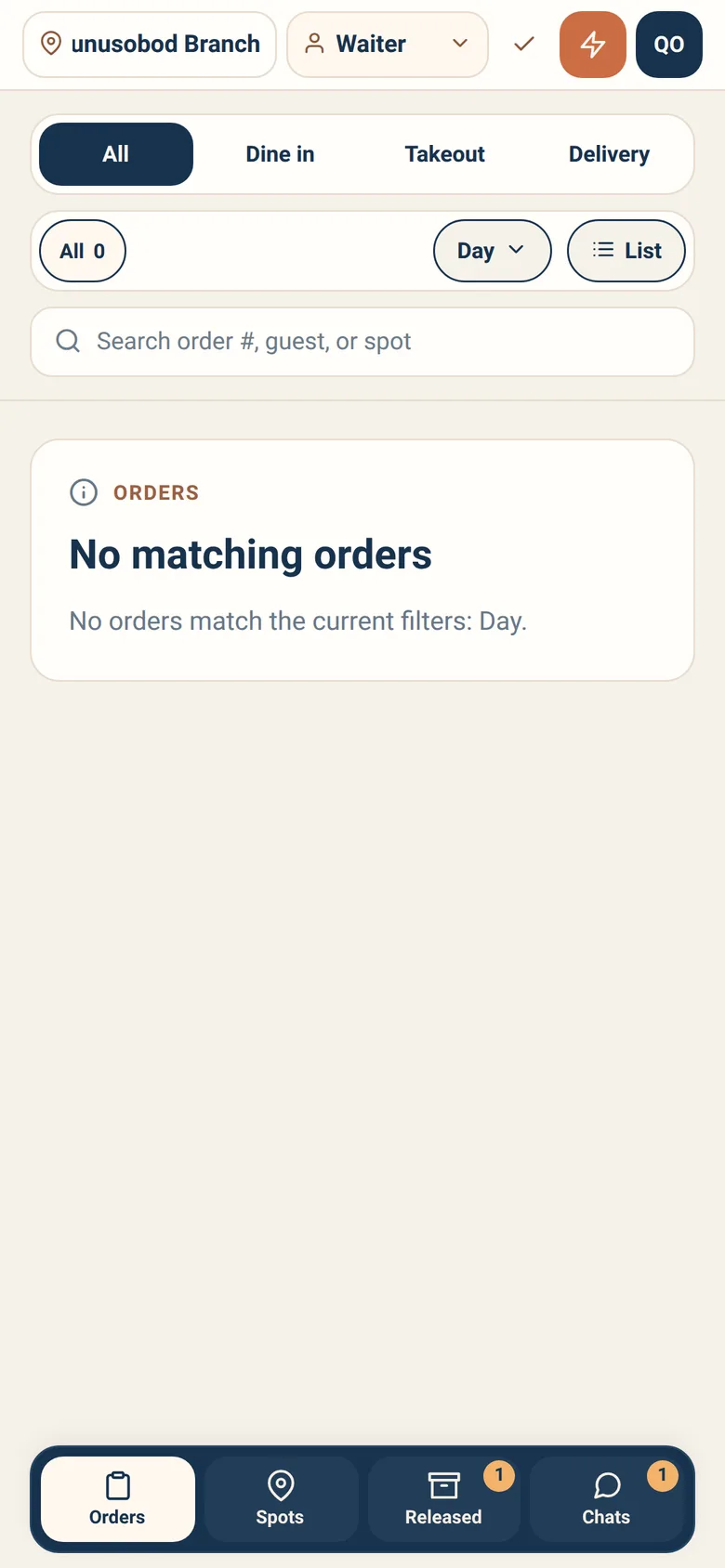
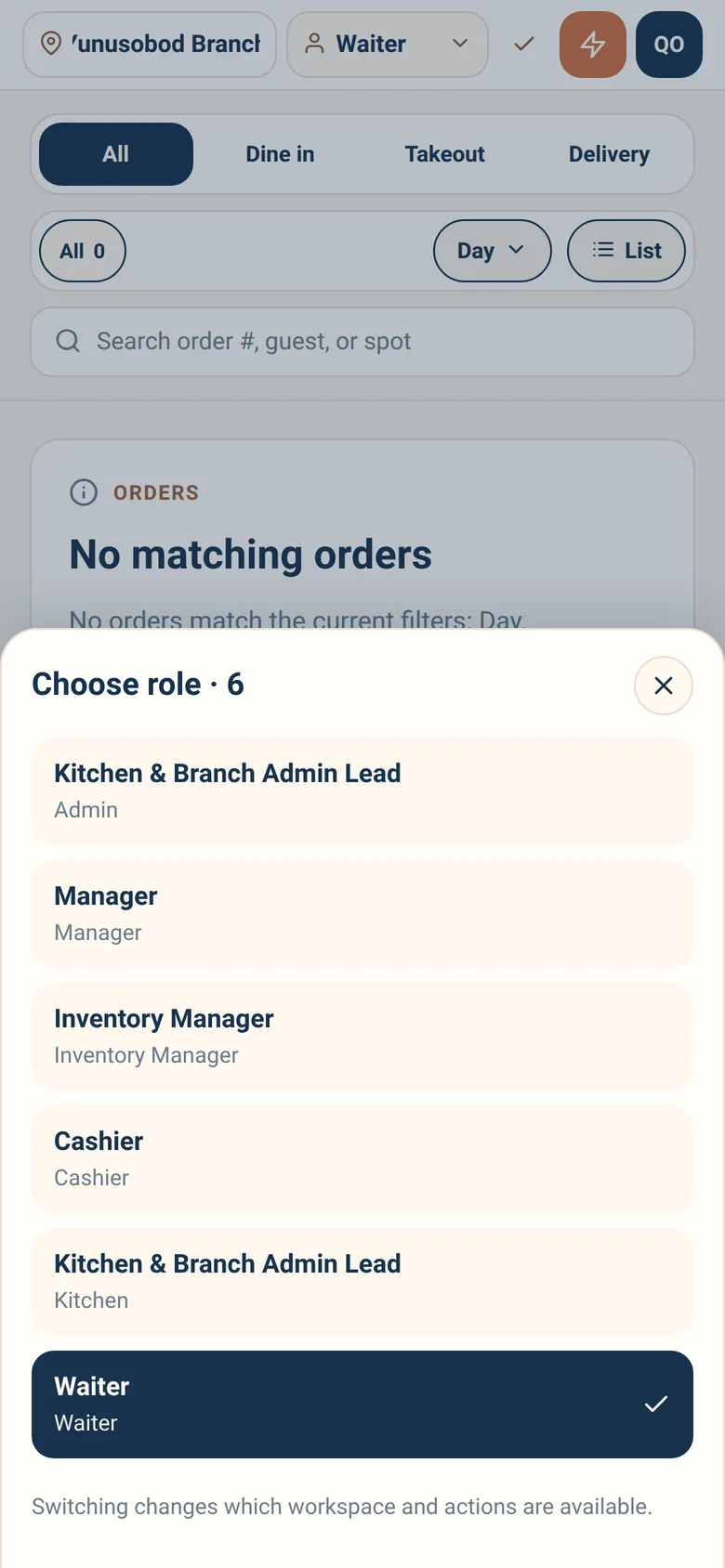
Every session in Pro starts by answering two questions: which branch, and which role. See Choosing your branch and role.
Chats and the assistant
Section titled “Chats and the assistant”Every workspace has Chats — conversations with colleagues and with guests about orders — and an assistant you can ask about what is on your screen. See Chats and the assistant.
Go to the page for the role you work: