Kitchen
The kitchen workspace is a production board. It shows what to cook, in what order, and how late it is.
The board
Section titled “The board”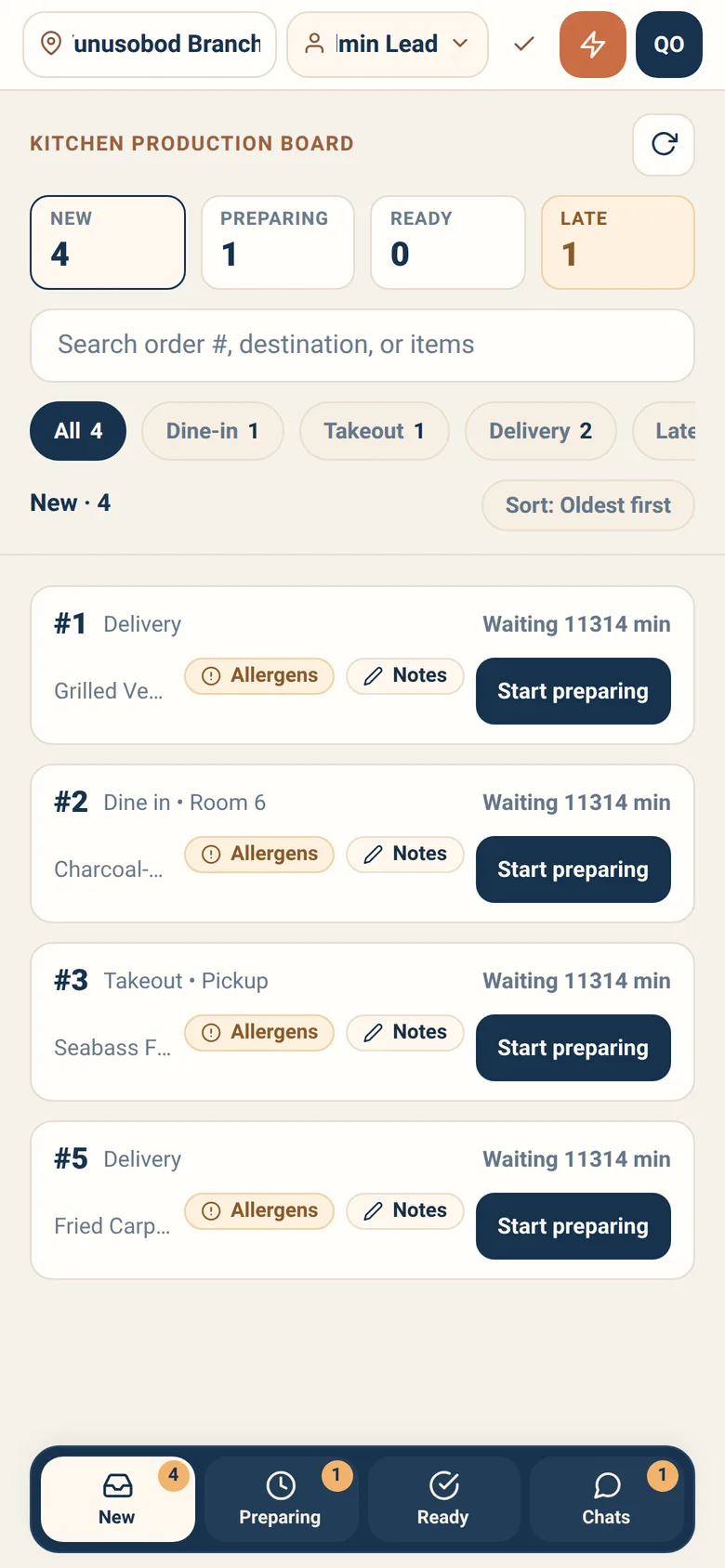
You look at one stage at a time. Across the top is a strip of four cells — New, Preparing, Ready, Late — each carrying a count. They are not columns you read side by side; they are the switch. Press one and the list below becomes that stage:
| Cell | What the list becomes |
|---|---|
| New | Arrived, not started |
| Preparing | Being cooked |
| Ready | Done, waiting to be taken out |
| Late | Everything running over its target, across stages — it turns red as soon as the count is above zero |
Each ticket shows the order number, its destination, the item count and total quantity, and how long it has been waiting. Late tickets are marked.
Sort by oldest first or most late. Most-late is the honest ordering during a rush; oldest-first is fairer when everything is on time. It is not offered on Ready — nothing there is still cooking, so there is no lateness to sort by.
Filter chips narrow the list: All, Dine in, Takeout, Delivery, Late, Priority, Notes. Delivery tickets are worth a second look during a rush: a courier may already be waiting; Notes is the fast way to find the tickets somebody wrote something on.
On Ready the whole rail is replaced. Instead of those seven chips you get one chip per destination group waiting to be handed off, with its own count, so you can pick off a table or a courier’s pile in one go.
Search covers order numbers, destinations and item names.
Moving a ticket
Section titled “Moving a ticket”A ticket carries one verb at a time, and which one depends on where the food is going. There are four in all:
| Verb | When you see it |
|---|---|
| Start preparing | The ticket is new — this is the first verb on every order, whatever its type |
| Mark ready | A dine-in order that is cooked |
| Mark pickup ready | A takeout order that is cooked |
| Mark for delivery | A delivery order that is cooked |
So a takeout or delivery cook never presses Mark ready at all. The button is whatever the server says is allowed next — where it publishes nothing, the ticket simply has no button rather than a dead one.
These are the verbs you use hundreds of times a shift, so they are inline — a single tap, no confirmation. Everything with real consequences still uses press-and-hold.
Opening a ticket shows the full work ticket: every item, quantity, options and notes, exactly as ordered.
Reporting a problem
Section titled “Reporting a problem”When you cannot cook something as ordered, say so on the ticket rather than improvising. The reasons are:
| Reason | Use it when |
|---|---|
| Item unavailable | You cannot produce this item at this station right now |
| Ingredient unavailable | Something required is missing |
| Modifier impossible | The customisation cannot be made as asked |
| Unclear note | You need clarification on the order or an item note |
| Order cancelled | The order was called off while you had it |
| Payment invalid | The payment behind it stopped being good |
| Possible duplicate | The same order looks to have arrived twice |
| Kitchen overloaded | The station cannot absorb this right now |
| Equipment issue | A machine or station is down |
| Timing issue | Pickup or delivery timing makes this order wrong to cook now |
Reporting is faster than guessing. It reaches the people who can fix it — a waiter can ask the guest, a manager can decide, a storekeeper can mark the item unavailable so nobody orders it again this evening.
Messages you will see
Section titled “Messages you will see”The kitchen board is the most contested screen in the app — several people act on the same orders at once — so it is explicit about conflicts:
| Message | What happened |
|---|---|
| Order already moved | Someone else advanced it; the board is refreshing |
| Order cancelled | It left the workflow — stop cooking it |
| Payment changed | Payment truth changed while you were acting; refresh first |
| Kitchen eligibility changed | It is no longer kitchen work in this branch |
| Action conflict | It is already finished and takes no more kitchen actions |
None of these is an error you caused. Each one means the board is telling you the truth instead of letting you act on a stale screen.
Loading a robot
Section titled “Loading a robot”Where a branch runs serving robots, ready tickets can be handed to one.
Load robot asks you to press and hold, and states exactly what you are attesting: that the tray on the robot matches this order. The robot departs after you confirm.
Take it seriously. Sitora knows which order it dispatched; it cannot see what is physically on the tray. Your hold is the only evidence that the two match.
Robot loading is disabled while offline — the app will not let you attest against a picture it is not sure about.
Day-to-day recipes
Section titled “Day-to-day recipes”A ticket is late and I have not started it. Press the Late cell to see only what is running over, or sort by most late and work down. If it is late because you cannot make it, report the problem rather than leaving it.
We have run out of something mid-service. Report ingredient unavailable on the tickets affected, and tell the inventory manager so the item is switched off — otherwise guests keep ordering it.
An item note does not make sense. Report unclear note. A waiter can ask the guest in seconds.
The board went offline. It shows the last known state and blocks changes. Keep cooking what you have already started; do not rely on the board for new work until it reconnects.
Two of us are on the same board. Fine, and expected. If you both act on one ticket, whoever lands second is told and the board refreshes. Nothing is lost.
What kitchen cannot do
Section titled “What kitchen cannot do”- Change what was ordered. Report a problem instead.
- Cancel an order. Cancelling happens on the floor, on the waiter’s order screen — not in the kitchen. Report a problem instead and let them decide.
- Confirm payment.
- Act while offline. Reconnect first.